
By: Divita Narang; Financial Consumer Agency of Canada
Introduction
Continuous Integration and Continuous Development (CI/CD) are essential practices in modern software and data engineering that streamline development and delivery through automation. These methodologies play a key role in achieving technical maturity and scaling projects from Proof of Concepts (POC) to production environments.
When applied to the Azure ecosystem with Azure Data Factory (ADF) and Azure DevOps (or a preferred toolkit/cloud provider), CI/CD allows teams to automate the deployment of data pipelines, datasets, data variables, and related resources. This ensures faster updates, version control, and consistent environments across the development lifecycle.
Azure Data Factory (ADF) is a managed cloud service designed for complex extract-transform-load (ETL), extract-load-transform (ELT), and data integration processes. It helps orchestrate data movement at scale using a vast array of built-in connectors and features while ensuring security with Microsoft Entra Groups integration. ADF is adept at serving enterprise needs, such as moving data from point A to point B while incorporating transformations such as: enforcing data types, formats and more. For example, it can ingest data from a front-end customer-facing application and integrate the data into a database. That database endpoint can then be utilized for various downstream use cases such as: reporting, analytics, machine learning, artificial intelligence etc.
Azure DevOps is Microsoft's comprehensive suite of tools for version control, automation, and project management. It can store Git repositories in Azure Repos and enable CI/CD using Azure Pipelines, which is used for deploying code projects. Azure Pipelines combines continuous integration, continuous testing, and continuous delivery to build, test, and deliver code to multiple destination environments.
At the Financial Consumer Agency of Canada (FCAC), we widely utilize Azure Data Factory and Azure Pipelines for managing the integration and deployment of data resources to and from endpoints such as Microsoft Dataverse, Microsoft Graph API, SQL Server databases, etc. As a growing data team, we are consistently exploring innovative approaches to tackle data engineering processes.
Recently, we addressed the challenge of automating deployment pipelines for Azure Data Factory (ADF). The manual processes involved in deployments were typically time-consuming, taking anywhere between 2-4 hours for a medium size code repository. Code could only be uploaded to the new environment manually or with PowerShell scripts, with each file taking up to a few minutes to upload. Additionally, the code had to be cleaned and prepared manually for the new environments. We anticipated that as the codebase grew within projects, the time required to perform these tasks would further increase. Please note that deployment times can vary significantly with codebase size and various factors suggested here.
Despite the automation efforts, it is worth noting that the manual processes can still be utilized as backup when team members are not available or when automated processes fail, and recovery is not possible in a short timeframe.
Though CI/CD has a broad scope, for the remainder this article we will focus on Continuous Integration and Deployment in the context of moving Data Factory resources from lower-level environments such as development to higher-level environments like Staging, Production, etc. Pipelines can be run manually, based on a schedule, or triggered by a change to the repository, such as a commit or merge to a specific branch.
Solution Overview
In this article, we will focus on a solution as highlighted in architecture below
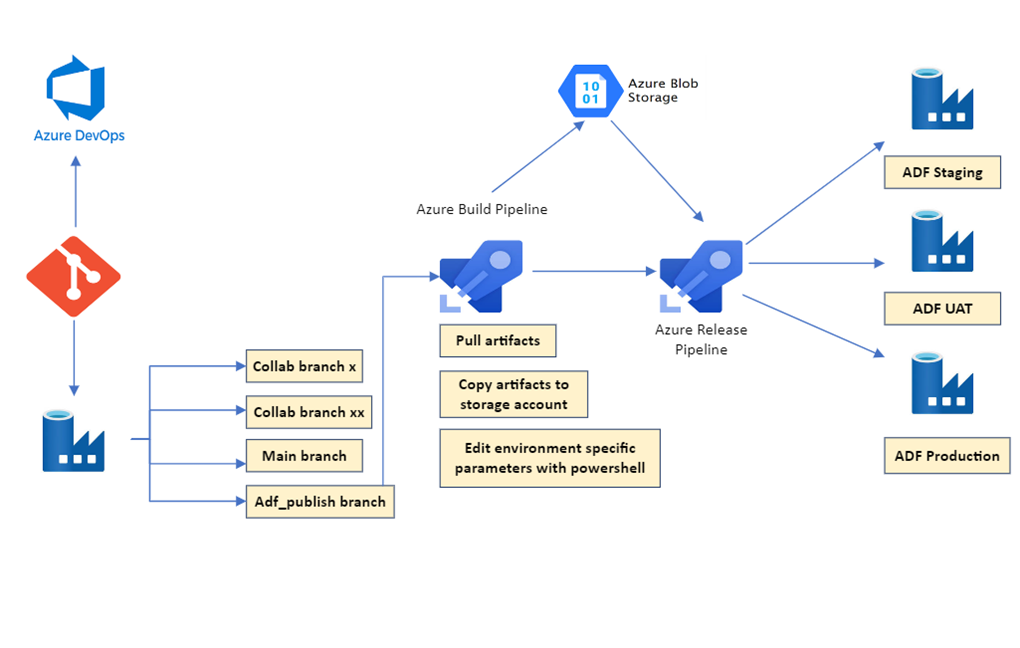
Figure 1 : Solution Architecture Diagram.
Description - Figure 1 : Solution Architecture Diagram.
This image shows the architecture of Azure components used in the solution, including Azure DevOps, Azure Data Factory, Azure Pipelines, and environments like Staging, User Acceptance Testing, and Production.
Note: Azure Data Factory code is based on Azure Resource Manager (ARM) templates, which is essentially Infrastructure as Code (IaC) in the JavaScript Object Notation (JSON) format. These files define the infrastructure and configuration for Azure resources. Just like application code, infrastructure code can be stored and versioned in a source repository.
Solution Pre-requisites
- Source control with Git, based on Azure DevOps.
- Pipeline agent parallelism enabled on Azure DevOps project. (Parallelism Request Form)
- Service Connections on Azure DevOps with access to relevant resource groups where Data Factory resides.
- Azure Data Factory Linked Services and other relevant authentication details stored as secrets on Azure Key Vault.
- Blob Storage account with read/write access to store ARM Templates.
Continuous Integration:
Code changes are published using the publish button on the ADF user interface once development has been completed on collaboration branch and pull request is completed on the main branch.
Upon publish, ADF takes care of the process of generating and validating ARM Templates. The generated templates contain all factory resources such Pipelines, Datasets, Linked Services, Integration Runtimes, Triggers and more. All these resources will likely have unique parameters in different environments which need to be carefully validated or else they can cause deployment errors or worse: a successful deployment with incorrect references to parameters like incorrect authentication details for a SQL Server Linked Service. A significant portion of the development effort was dedicated to addressing these challenges, as will be detailed in subsequent sections.
Build Pipeline Setup:
For the build setup, multiple tasks available in Azure Pipelines are used in decoupled steps as follows.
- Get resources in the Pipeline from your Azure DevOps repo and (this is very important) select the default branch as ‘adf_publish’.
- Use ‘Publish Artifact’ task to ‘drop’ the artifacts for use by the pipeline.
- Use ‘PowerShell Script’ task to run a script to replace all parameters to match with the target environment. For example, if the development database name is ‘Dev-DB’ in the source code and the target environment is staging with the database name such as ‘Stg-DB’, the PowerShell script can perform string replacement in all files for all variable references to reflect the correct target database. Please refer to this code sample for further guidance.
Pro-tip: A lot of parameters exist in the first few Arm Templates, but it is best to run the script on each Arm Template file. There is also a way to modify parameters using ‘Override Parameters’ in the release part of the pipeline which we will get into later in this article. - Use ‘Azure File Copy’ task to copy all templates from the ‘linkedTemplates’ folder of your repo into a storage account. Storing ARM templates in blob storage creates the welcome redundancy for storing modified code from Step 3. It is also a required practice for large codebases.
Pro-tip: Clean storage container before copying. And create separate containers for different environments such as Staging, UAT, Production, etc. This helps with keeping things organised and reduces chances of erroneous deployments.
After the setup the pipeline will roughly look like this:
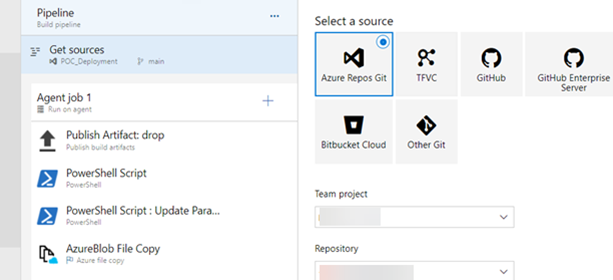
Figure 2: Screenshot of Pipeline components in Azure DevOps.
Description - Figure 2: Screenshot of Pipeline components in Azure DevOps.
This image displays a section of an Azure DevOps Pipeline Interface; it includes different steps of the build pipeline referring to the solution in this article. These steps include Publish Artifact: drop, two PowerShell Script tasks and an AzureBlob File Copy task.
Release Pipeline Setup:
- Create an ‘Empty job’ in the ‘Releases’ section of Azure DevOps.
- Add repository artifacts processed by the Build Pipeline created earlier.
- Search for and create a ‘PowerShell Task’. Provide the path to pre/post deployment script. This script is used to stop triggers before deployment and restart them afterwards. It is provided by Microsoft : Continuous integration and delivery pre- and post-deployment scripts - Azure Data Factory | Microsoft Learn. For ease of use, the script can be uploaded to the project repo.
- Search for and create an ‘Arm Template Deployment’ Task and fill in details according to the previous pipeline and project setup.
- In the ‘Override template parameters’ section of the task, you will notice that some parameters are already loaded based on the ‘ArmTemplateParameters_master.json’ which is part of artifacts from the project. These can be further customised based on the ‘arm-template-parameters-definition.json’ configuration on Azure data factory : Custom parameters in a Resource Manager template - Azure Data Factory | Microsoft Learn.
If this option is chosen, there is no need to perform Step 3 in build pipeline setup. Here is an example of using custom parameters for Azure Blob Storage, Azure SQL Database and Dataverse (Common Data Services for Apps)
- In the ‘Override template parameters’ section of the task, you will notice that some parameters are already loaded based on the ‘ArmTemplateParameters_master.json’ which is part of artifacts from the project. These can be further customised based on the ‘arm-template-parameters-definition.json’ configuration on Azure data factory : Custom parameters in a Resource Manager template - Azure Data Factory | Microsoft Learn.
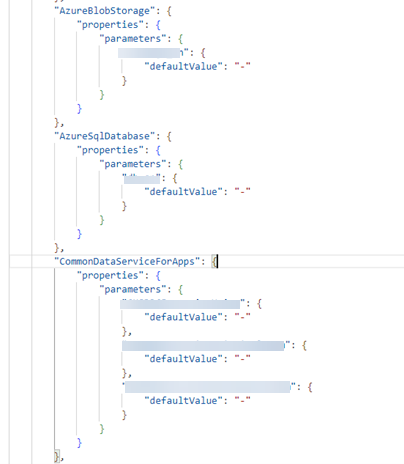
Figure 3: Screenshot of code sample in user interface of Azure Data Factory.
Description - Figure 3: Screenshot of code sample in user interface of Azure Data Factory.
This image displays a code sample in the ‘arm-template-parameters-definition.json’ file of the Azure Data Factory instance. It contains configuration for resources such as: Azure Blob Storage, Azure SQL Database and Common Data Services for Apps, each with nested properties and parameters including a “defaultValue” field.
This approach may not be suitable if there are more than 256 parameters, as that is the maximum number allowed. If refactoring the code is a possibility for your project, consider these alternatives:
- Reducing the number of parameters by utilizing global parameters wherever possible.
- Taking note of parameters that are implicitly inherited and removing those when redundant. For example, dataset parameters are inherited from linked services and may not need to be added to datasets if they are already present in linked services.
- If maintenance and new resource creation is not an issue, split the solution into multiple data factories for large solutions.
- Use power shell scripts to clean and prepare code for different environments as utilised in this solution.
After the setup, the release pipeline will roughly look like the following:
Note that the Pre-Deployment and Post-Deployment task uses the same script but with different script arguments.
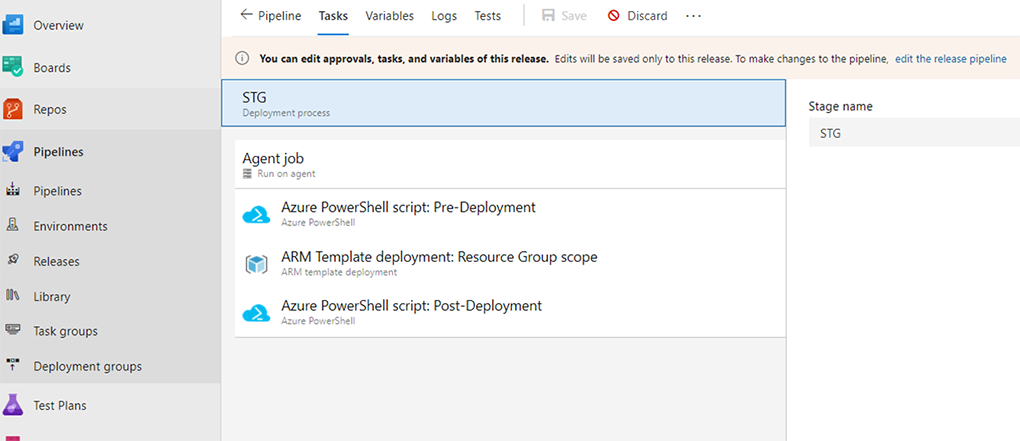
Figure 4: Screenshot of Pipeline components in Azure DevOps.
Description - Figure 4: Screenshot of Pipeline components in Azure DevOps.
This image displays the different steps of the release pipeline in Azure DevOps. The steps include pre-deployment and post-deployment PowerShell script tasks, and an Arm Template Deployment task.
Troubleshooting, Testing and a few more Pro-Tips:
- To begin testing the new solution it might be worth creating a test Azure Data Factory and deploy there to ensure all the parameters are copying properly and Linked Services/Datasets connections are successful.
- During and after deployments: monitor logging at the resource group level’s ‘Deployments’ tab of Azure Data Factory in Azure Portal to check for progress and more descriptive error logs.
- If the time fields on Tumbling window triggers are not aligned with the target environment, the deployment will fail. An easy fix is to align the time fields to match with triggers in target deployment environments.
- Integration Runtimes can also be incompatible in different environments. A quick fix is to remove/update references to Integration Runtimes using the PowerShell script in Step 2 of the build pipeline.
- Using hotfix approach if the deployed data factory has a bug that needs to be fixed as soon as possible.
- If Global Parameters are specific in each environment, the ‘Include global parameters’ checkbox can be left unchecked on Arm Template Configuration section in ADF. In that way there will be a few less parameters to customize while deploying.
- Continuous Integration triggers can be enabled in both the Pipeline and the Release level based on schedules, pull requests or artifacts.
- Pre-deployments approvals can also be setup at the Release level for critical deployments such as in production environments.
- Pre-determine whether to choose ‘Incremental’ or ‘Complete’ deployment mode especially if environments differ in resource storage.
- During the testing phase, ARM templates can be manually exported to local storage and PowerShell scripts created for parameter management can be run locally for quicker testing and troubleshooting.
Evaluation
This is one way amongst many to approach automated deployments in Azure Data Factory for different environments. We chose to build this solution using Azure services as that is the agency’s choice of cloud services provider. This process has helped us explore CI/CD automation in the context of data solutions and demonstrate the possibility of significant time savings for deployments. However, as the learning curve goes with any new process, we also encountered errors and spent significant time troubleshooting. This led us to discover unique quirks in the process, which we have highlighted as pro-tips above. These tips can be highly beneficial, saving you time and effort by helping you avoid common pitfalls and streamline your Azure based deployment processes.
Conclusion
We are committed to enhancing our operations environment for iterative deployments by continuously refining our CI/CD processes. We are also actively gathering feedback from our team to identify areas for improvement in our releases.
With rapid innovation and an increasing availability of built-in features in Microsoft's data products, we also recommend that readers refer to the following resources: Automated Publishing for CI/CD , Deploying linked ARM Templates with VSTS and Deployments in Microsoft Fabric.
Stay tuned for more insights and updates on these topics in our upcoming articles!